How to create a QR code for your restaurant menu, step by step
A QR code is just a link that a phone camera can read. The important question is not how to make the code, it is where the code points to. Get that right, and you will never need to reprint it.
Step 1: Decide what the code opens
There are two common options:
- A PDF of your printed menu. Quick to set up, but hard to read on a phone (guests have to zoom and scroll sideways), and every price change means a new PDF, and sometimes a new code.
- A live digital menu. A web page made for phones, with sections, photos and allergens. You change it whenever you want, and the same code keeps working.
A live menu is the better choice for almost every restaurant, café and bar.
Step 2: Build the menu the code will open
With GetMenuBloom you can take a photo of your printed menu, or upload a PDF or Word file, and your sections, dishes and prices are filled in for you. Then you choose a design, your colors and the languages you want guests to see.
Step 3: Get a code that never changes
Your GetMenuBloom menu has its own permanent address, and your QR code points to that address. When you edit a price or hide a dish that is sold out, guests see the change right away, with the same code.
Tip: avoid free QR generators that create a "dynamic" code on their own servers. Some of them stop working, or start showing ads, after a trial period. Your code should point to your own menu.
Step 4: Print it the right way
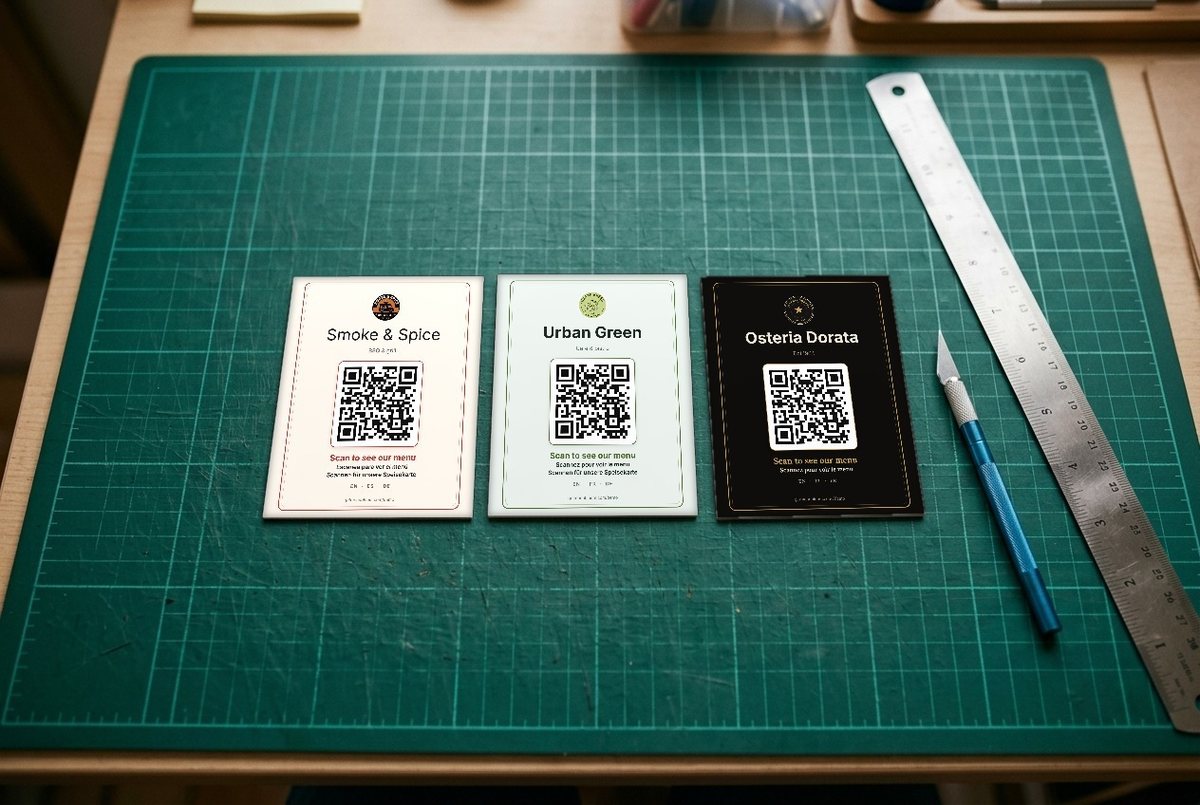
- Size: at least 3 x 3 cm on tables, 10 x 10 cm or more on signs.
- Contrast: a dark code on a white or light background.
- Quiet zone: leave a white margin around the code. Don't put it at the very edge of a design.
- Paper: matte paper scans better than glossy paper under restaurant lights.
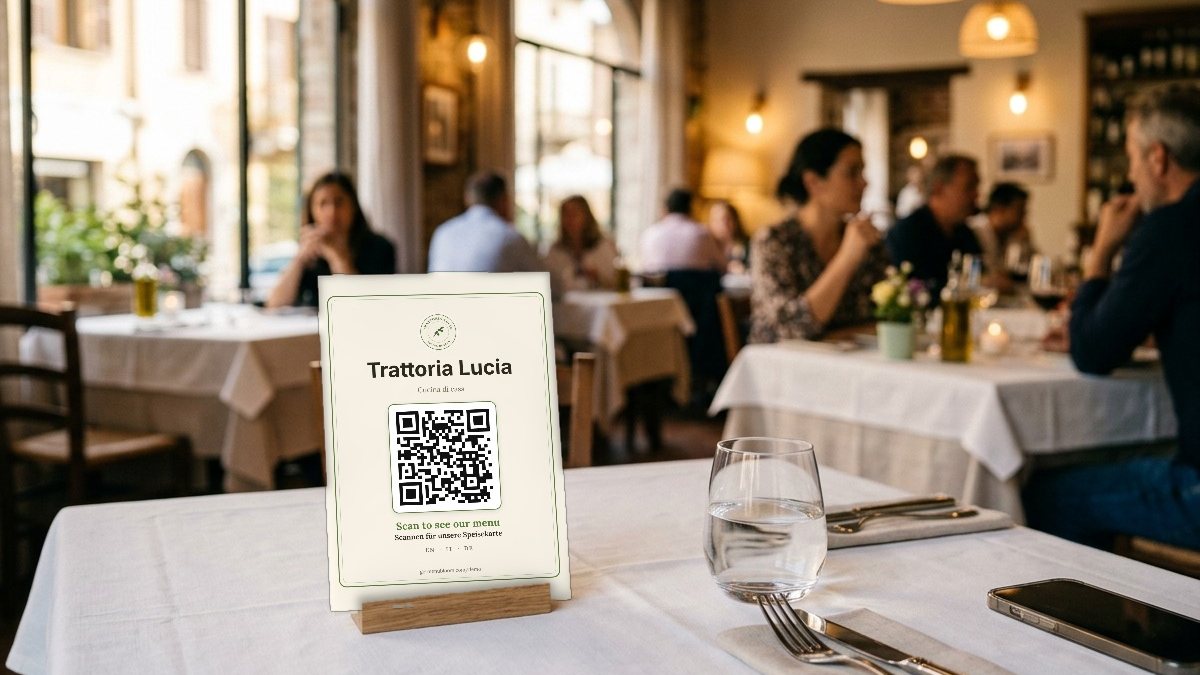
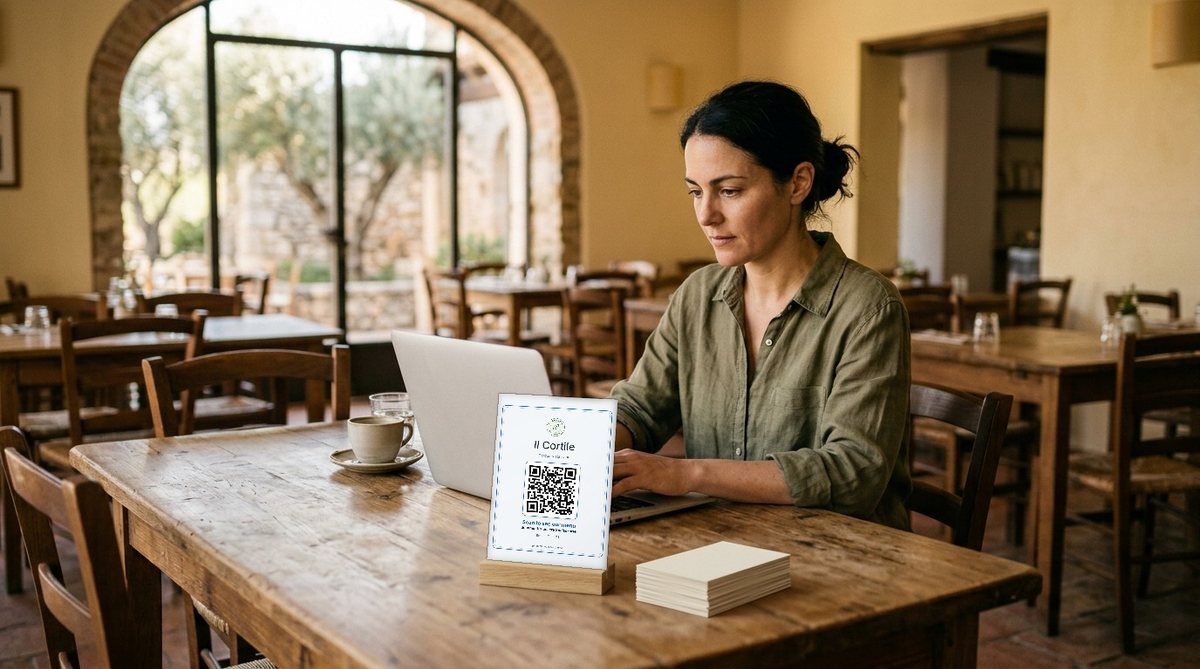
In GetMenuBloom, open QR code & table card in your editor to download a print-ready table card with your logo, your restaurant name and a "Scan to see our menu" line in your menu's languages.
Step 5: Test before it goes on the tables
- Scan the printed code with two different phones (one iPhone and one Android if you can).
- Scan it from the distance a guest would, sitting at the table.
- Check the menu opens fast on mobile data, not only on your Wi-Fi.
- Switch the menu to another language and check that the dishes are translated.
Step 6: Put it where guests look
The best code is the one guests notice. See our guide on where to place your menu QR code for tables, counters, entrances, food trucks and more.
Checklist: a good QR code menu for restaurants
Before you choose a QR code for your menu, or a free QR code menu generator, check that:
- The code opens a menu made for phones, not a PDF that guests have to zoom into.
- The same code works forever, even when you change dishes, prices or the menu's address.
- There are no ads and no expiry date on the code.
- Guests can read the menu in their own language, with allergens and dietary labels.
- You can print it yourself as table cards, stickers or a sign, at the size you need.
Want to see what guests see when they scan? Open our sample menu. To build yours, see our online menu maker guide.